1. How to Clear Pairing Data for the Fingerprint Mouse in 2.4G Mode
When the mouse is in 2.4G mode, press and hold the **DPI button** and the **mode button** (on the bottom of the mouse) simultaneously to clear the 2.4G pairing data.
2. How to Clear Pairing Data for Bluetooth Mode
When the mouse is in Bluetooth mode, press and hold the **mode button** (on the bottom of the mouse) to clear the Bluetooth pairing data.
Note: Since the mouse stores only one Bluetooth pairing record, after clearing the pairing data on the mouse, the corresponding pairing information on the PC must also be removed.
3. How to Enable Dual 2.4G Mode for the Fingerprint Mouse (Only Supported in Version 2.0)
1. Open the KikaID installation directory (default: `C:\Program Files\KikaID`).
2. Open the configuration file `kikaConfig.ini`.
3. Change the value of the parameter `double4k` to `1`.
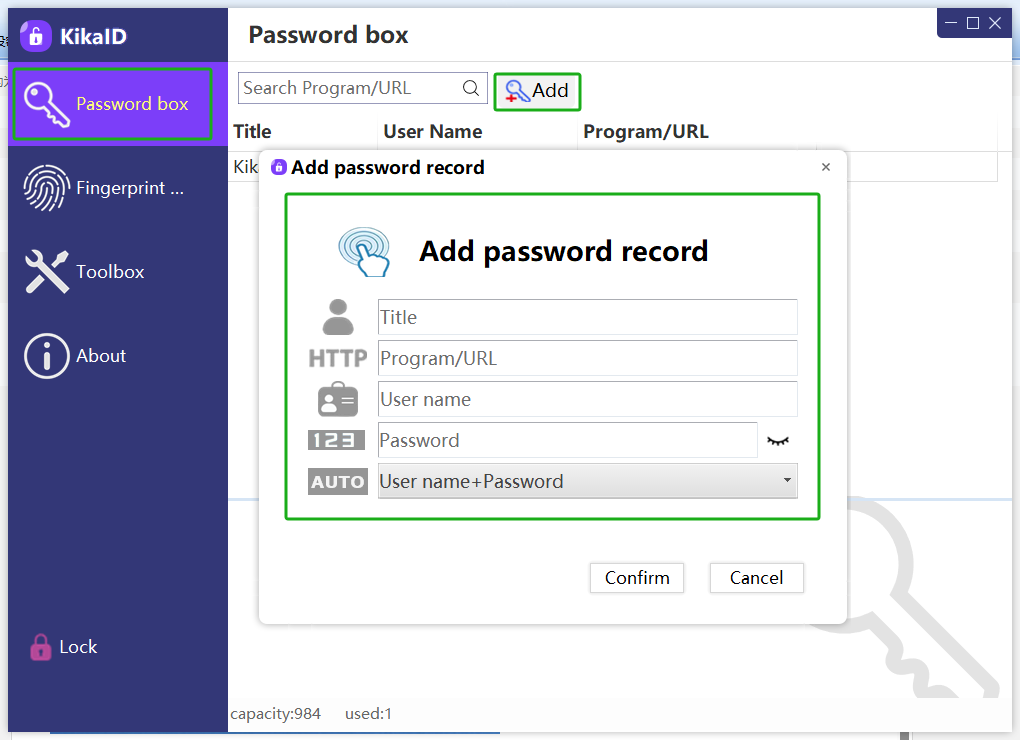
4. The KikaID tool will then display the dual 2.4G mode option.
After enabling dual 2.4G mode, the USB mode will switch to the second 2.4G mode, allowing pairing with another receiver.
4. How to Pair One Receiver with Multiple Mice
- A single receiver can pair with up to **4 different mice.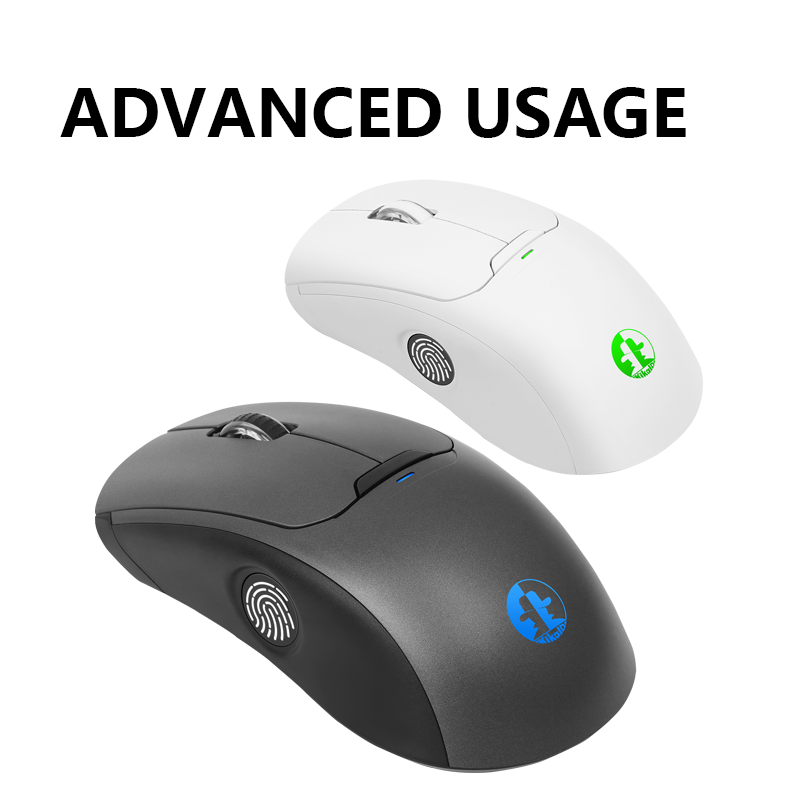


 KikaID
Shenzhen Kika Security Information Technology Co., Ltd. is a high-tech company at the forefront of information security.